Look at your desktop right now. Honestly, is it a disaster? If you’ve got screenshots, random PDFs, and "Final_Final_v2" documents scattered everywhere, you aren't alone. macOS is beautiful, but it becomes a digital junk drawer the second you stop staying organized. Learning how to make a folder in Mac is basically the first step toward regaining your sanity. It’s simple, sure, but there are actually a few different ways to do it depending on where you are in the system—and some of them are way faster than others.
Most people just right-click. That works. But if you’re trying to be efficient, you’ve got to learn the shortcuts.
The fast way: Right-clicking and shortcuts
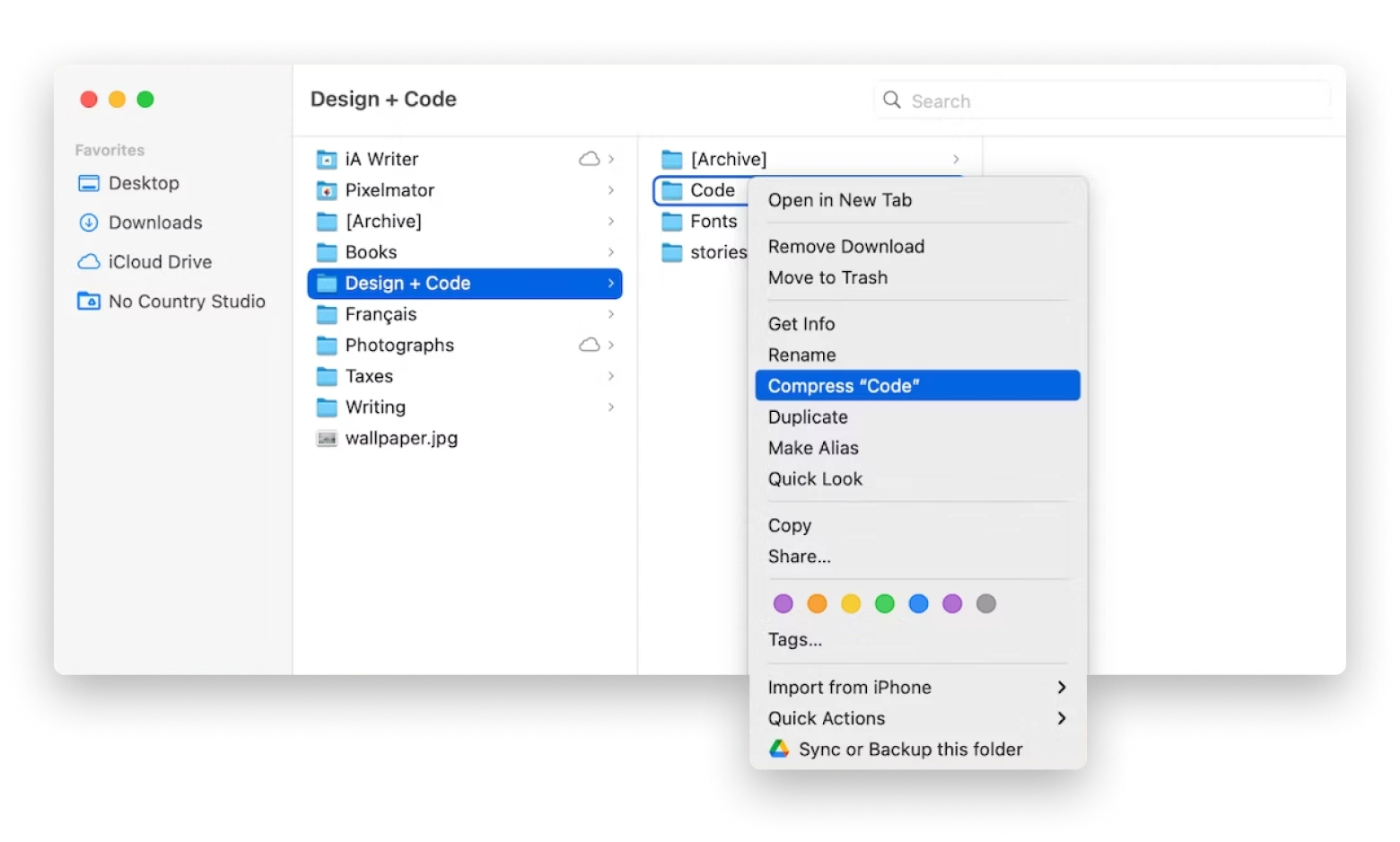
The most common way to get this done is just clicking on any empty space on your desktop or within a Finder window. You right-click (or Control-click if you’re using an old-school mouse), and you hit New Folder. Boom. A folder appears, usually named "untitled folder" by default.
But if you want to look like a pro? Use the keyboard.
Press Command + Shift + N.
Do it right now. It works instantly. This shortcut is universal across macOS. Whether you’re deep in your Documents folder or just staring at your wallpaper, that three-finger salute creates a new home for your files. I find this much better than hunting through menus, especially when I'm in the middle of a project and need to dump files into a specific spot quickly.
Grouping existing files (The "Smart" Way)
This is the feature most people actually miss. Say you already have fifteen photos of your cat sitting on your desktop. You don't have to create a folder and then drag them all in one by one. That’s tedious.
Instead, highlight all the files you want to move. Once they’re selected, right-click any of them. You’ll see an option that says New Folder with Selection.
Apple added this a few versions of macOS ago, and it’s a lifesaver. It takes all those highlighted files, wraps them up in a brand-new folder, and even puts the cursor in the name field so you can label it immediately. It’s the cleanest way to tidy up a mess that’s already happened. If you’re a shortcut junkie, the combo for this is Command + Control + N.
Organizing with Stacks
If you're truly lazy—and I say that with love—you might not even need to learn how to make a folder in Mac manually every time. Apple introduced a feature called "Stacks" a while back.
Right-click your desktop and select Use Stacks.
Suddenly, your computer does the chores for you. It piles all your images together, all your PDFs together, and all your spreadsheets into their own little neat piles. It’s not technically "making a folder" in the permanent sense, but it cleans up the visual noise instantly. Some people hate it because it moves their icons around, but if you’re drowning in screenshots, it’s a miracle worker.
Dealing with iCloud and Permissions
Sometimes, you try to make a folder and it just... won't let you. This usually happens in two scenarios.
First, you might be trying to create a folder in a "Read Only" directory. This happens a lot if you’re poking around in the system files or a shared network drive where you don't have admin rights. If the "New Folder" option is greyed out, that’s why. You can't just drop a folder into the heart of the macOS System library.
Second, let's talk about iCloud. If you have "Desktop & Documents" syncing turned on in your iCloud settings, every folder you make is actually being uploaded to Apple’s servers. If your iCloud storage is full, macOS might get grumpy about adding more stuff. It’s worth checking your storage in System Settings if things start feeling sluggish or won't sync across your iPhone or iPad.
Finding your folders later
Creating the folder is only half the battle. Finding it again is where the real struggle begins. macOS uses "Tags" which are basically stickers you can put on folders.
I usually tag my "Urgent" folders with a red dot.
To do this, right-click the folder and pick a color from the bottom of the menu. Now, even if that folder is buried deep in your file structure, you can find it by clicking the red tag in the Finder sidebar. It’s a secondary layer of organization that goes beyond just folder names.
Advanced move: Smart Folders
Now, if you want to get really nerdy, you can create a Smart Folder. This isn't a real folder; it’s a saved search.
- Open Finder.
- Go to File > New Smart Folder.
- Define your criteria (like "Kind is Image" and "Date Created is within the last 7 days").
This folder will automatically populate with every file on your Mac that fits those rules. It’s incredible for tracking active projects without having to move files out of their original homes.
Why your folder name matters
Don't name things "Stuff" or "New Folder 2." Your future self will hate you.
When you create a new folder, macOS automatically highlights the text so you can rename it. If you accidentally clicked away, just click the folder once, wait a second, and click the text again. Or press the Return key while the folder is selected. That opens the rename box immediately.
Use dates (YYYY-MM-DD) if you want things to sort chronologically. It’s a trick used by developers and photographers to keep thousands of files in order. If you name a folder "2024-05-Project," it will always stay in its proper place when you sort by name.
Keeping it clean long-term
Making the folder is the easy part. Keeping the habit is harder. A good rule of thumb is the "One-In-One-Out" rule for your desktop. Every time you make a new folder on your desktop, try to archive an old one to your external drive or a "Archive" folder in your Documents.
The less clutter on your desktop, the less RAM your Mac uses to render those icons every time you minimize a window. It’s a tiny performance boost, but every little bit helps when you’re running heavy apps.
Actionable Next Steps
- Clean the Desktop: Use the New Folder with Selection trick to group all your current loose files into three categories: Work, Personal, and To-Sort.
- Memorize the Key: Practice Command + Shift + N five times in a row until it’s muscle memory. You'll never go back to right-clicking.
- Audit your iCloud: Go to System Settings > Apple ID > iCloud and see if your Desktop is syncing. If you have a slow internet connection, you might want to turn this off for folders containing large video files.
- Set up a Tag: Pick one color tag (like Green for "Completed") and start applying it to your folders this week to see if the visual cue helps you navigate faster.